
There are levels to automation. You can script a manual process – but you still have to run that code. You can schedule a pipeline – but what do you do when your workflow doesn’t follow a predictable schedule? Maybe your data only refreshes once a week, in which case you don’t want to keep your pay-as-you-go Fabric capacity sitting idly costing you money.
In my case, I have a personal Fantasy Premier League (FPL) project that only needs to refresh every gameweek. My Fabric pipeline shouldn’t run every day, and I definitely don’t want a pay‑as‑you‑go Fabric capacity quietly burning money in the background “just in case” I need it.
So in this blog, I’m going to walk through how I fully automated the entire workflow – end to end – so that I never have to manually touch Fabric again.
Specifically:
- why I needed to automate this workflow in the first place
- how to configure workspaces so dashboards stay viewable even while the capacity is paused
- how to structure a pipeline that supports this level of automation
- how I built an Azure Function that checks a watermark, resumes my Fabric capacity, triggers a pipeline, and pauses the capacity again
Context – Personal FPL Project
I originally built my FPL prediction project on Databricks Free (the full walkthrough is here). I have since migrated this whole project into Fabric – all testing and debugging done before my Trial capacity ran out! Once the trial ended, I had to switch to a paid F2 capacity to keep everything running.
However, I’m a self-employed business owner just starting out. I can’t justify keeping a PAYG capacity running 24/7, especially when the pipeline only needs to run after every gameweek. Because FPL gameweeks can fall on Fridays, weekends, or midweek, there’s no consistent schedule I can rely on.
That meant I was manually tracking FPL deadlines, logging into Fabric, running the pipeline, and then checking my dashboards. We all know how easy it is to forget a FPL deadline – and an unnecessary drain on both time and money.
So I built a solution that does all of this for me.
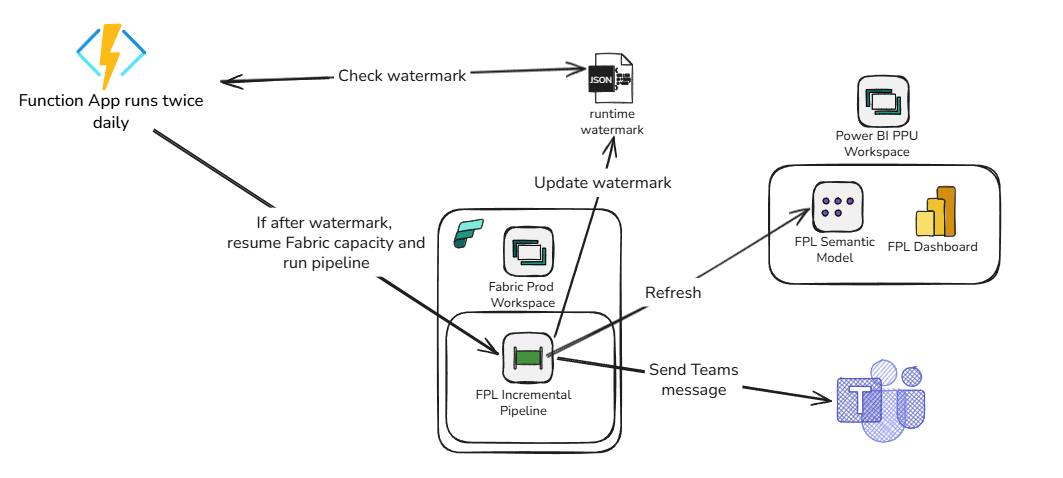
An Azure Function now checks a small watermark JSON in Blob Storage twice a day. When the current time passes that watermark, the function:
- resumes my paused Fabric capacity
- runs the pipeline
- lets the pipeline refresh the semantic model and update the watermark
- sends me a Teams notification
- pauses the capacity again
Now the whole system runs itself. And I never have to think about it.
Here is a visualisation of the workflow:
Fabric vs Power BI Workspaces
Before diving into the automation itself, it’s important to understand how workspace types behave – because this directly affects how you view reports when your Fabric capacity is paused.
In Microsoft Fabric, you can create:
- Fabric Workspaces – full‑fidelity workspaces that support all Fabric workloads (Lakehouse, Pipelines, Notebooks, Warehouse, etc.).
- Power BI‑only Workspaces – workspaces that don’t run on Fabric compute and only support Power BI artefacts (reports, semantic models, dashboards).
If the workspace is tied to a Fabric capacity and you pause that capacity:
- all data stored in Fabric items (Lakehouse, Warehouse, Semantic Models hosted in Fabric) becomes temporarily inaccessible
- Power BI dashboards and reports backed by those models will show errors or blank visuals
The data isn’t gone – it’s just unavailable because the compute is offline. This is a problem if you want to view dashboards while keeping your Fabric capacity off most of the time.
The solution is to create a Power BI Pro or PPU workspace that sits outside Fabric capacity. This workspace does not pause, does not run Fabric compute, and can host your production report and a copy of your semantic model.
To do this, you need to:
- Download the production semantic model and report from your Fabric workspace.
- Re‑publish them into a Power BI Workspace (not a Fabric Workspace) – the semantic model still points to the Production lakehouse.
- When your pipeline runs and the capacity is temporarily resumed, refresh the semantic model in the Power BI workspace.
- After the capacity pauses again, the refreshed dataset remains accessible.
N.B. Choosing between Pro and PPU depends on:
- Semantic model size limits
- Refresh frequency
- Advanced features (e.g., Direct Lake, large models, incremental refresh)
- Who needs access and what licences they have
Building Automated Pipelines – Updating a Watermark, Refreshing the Model and Alerting
To make the workflow fully autonomous, the pipeline itself needs to handle three key tasks: refreshing the semantic model, updating the watermark file, and notifying me of the outcome.
First, the pipeline triggers a semantic model refresh so the Power BI workspace always receives the latest data while the Fabric capacity is online.
Next, it updates the watermark JSON stored in Blob Storage – using a quick notebook step – so the Azure Function knows exactly when the next gameweek refresh should happen. I do this by adding 12 hours to the final fixture of the next gameweek, to give FPL time to update their data.
Finally, the pipeline sends a success or failure alert to a Teams channel, giving me instant visibility into whether the run completed as expected. With these steps in place, the system becomes completely hands‑off.
All I need to do is open the dashboard and see how I need to change my team!
Azure Function to Resume the capacity, run a pipeline, and pause it again
I won’t walk through the code of the Azure function – the repo is here.
To enable this to work, you need to create a few artefacts in Azure.
- Create a service principal with the following permission:
- Tenant.ReadWrite.All
- Grant the SP at least Contributor to your Fabric and Power BI workspaces
- Create a storage account and store a watermark JSON file in the format {“nextRunUtc”: “2026-03-17T08:00:00Z”}
- Store the following credentials in Key Vault:
- fabric-sp-client-id
- fabric-sp-client-secret
- fabric-sp-tenant-id
- watermark-storage-connstr (the storage account connection string)
- Create a Function App, ensuring it has a System-assigned Managed Identity and Contributor access to the subscription
- Grant Key Vault Secrets Reader access to the Function app managed identity
- Add the following Environment variables to the Function App:
- CAPACITY_NAME: Name of your Fabric capacity
- CLIENT_ID: @Microsoft.KeyVault(SecretUri=https://{keyvault name}.vault.azure.net/secrets/fabric-sp-client-id/{secret version ID})
- CLIENT_SECRET: @Microsoft.KeyVault(SecretUri=https://{keyvault name}.vault.azure.net/secrets/fabric-sp-client-secret/{secret version ID})
- FABRIC_SCOPE: https://api.fabric.microsoft.com/.default
- PIPELINE ID: The guid of the pipeline you want to run in Fabric
- RESOURCE_GROUP_NAME: Name of the resource group that contains the Fabric capacity
- SUBSCRIPTION_ID: The Subscription ID that contains the Fabric capacity
- TENANT_ID: @Microsoft.KeyVault(SecretUri=https://{keyvault name}.vault.azure.net/secrets/fabric-sp-tenant-id/{secret version ID})
- WATERMARK_STORAGE_CONN_STR: @Microsoft.KeyVault(SecretUri=https://{keyvault name}.vault.azure.net/secrets/watermark-storage-connstr/{secret version ID})
- WATERMARK_BLOB_NAME: The filename of the watermark JSON file
- WATERMARK_CONTAINER: The folder that contains the watermark JSON file
- WORKSPACE_ID: The ID of the Fabric workspace
- Deploy Function to Function App
- Test and Run!
Summary
In the end, this setup means I don’t have to touch anything. I’ve done the hard work coding the pipeline and don’t need to monitor it. I no longer track FPL deadlines, manually resume capacity, run pipelines, or worry about leaving Fabric running and racking up costs. The Azure Function checks the watermark for me, wakes the capacity only when needed, runs the full pipeline, updates everything, and then shuts the capacity back down.
All I get is a simple Teams message – either confirming the pipeline ran successfully or flagging any failures. From there, I can open my Power BI report at any time (even when the Fabric capacity is paused) and everything is already up to date. The whole workflow is fully automated, cost‑efficient, and completely hands‑off.
BW